User manual
Channel Timeline Viewer lists a channel’s uploads oldest-first so you can work through them while keeping track of how far you got. This page walks through every feature.
Use the buttons above to switch between the iPhone and Android versions. Most steps are the same — only the parts that differ change.
1. Getting the app
The app is free. There is no account to create and no sign-in.
-
Install from the App Store
iOS 17 or later is required. Search the App Store for “Channel Timeline Viewer”, or use the App Store button on this site.
-
Install from Google Play
Search Google Play for “Channel Timeline Viewer”, or use the Google Play button on this site.
-
No YouTube account needed
You never sign in. The app only reads public information about videos through YouTube’s official API.
2. Adding a channel
There are two ways to add a channel. Both end up in the same place.
-
Paste a URL
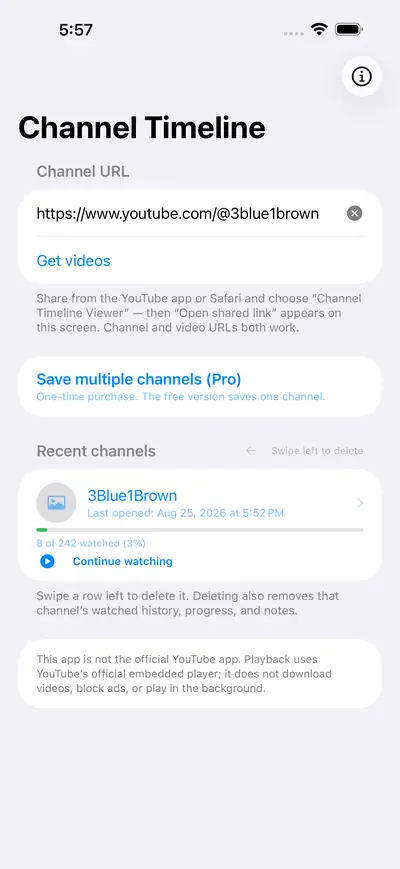
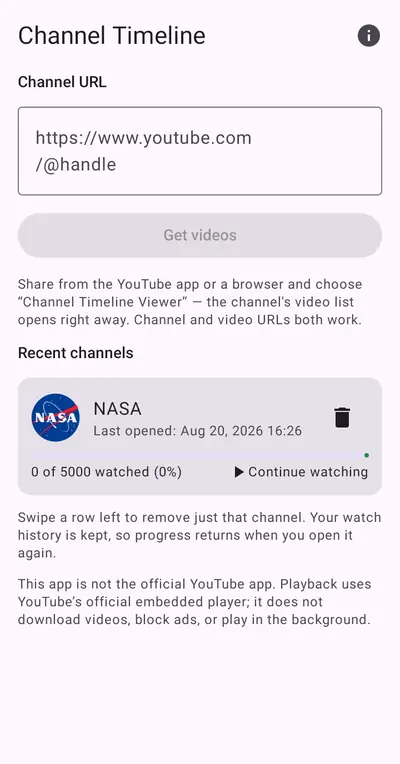
On the first screen, put a channel URL (for example youtube.com/@handle or youtube.com/channel/UC…) into the “Channel URL” field and tap “Get videos”. A video URL works too — the app finds the channel that published it.
-
Large channels take a while
The first load fetches every upload, so channels with many videos take longer. Just wait while “Loading videos...” is showing.
-
Share from YouTube
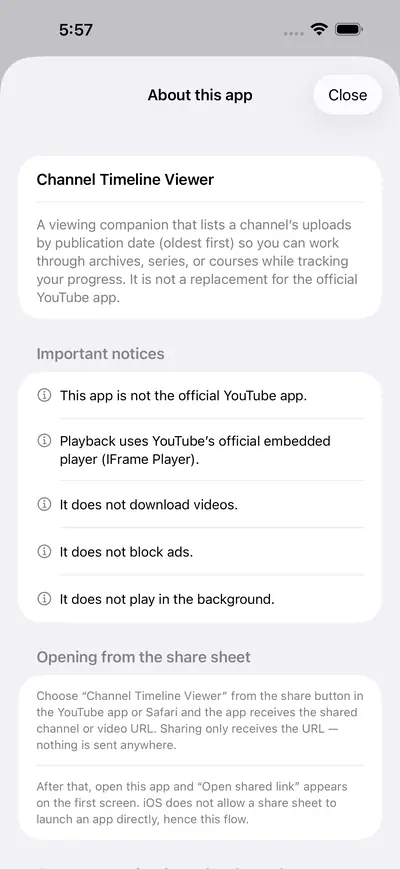
Tap the share button in the YouTube app or Safari and choose “Open in Channel Timeline”. iOS does not let a share sheet launch an app directly, so allow notifications and tap the notification that appears right after sharing.
-
Put it at the front of the share sheet
iOS decides the order of the share sheet, so the app cannot set it. Scroll the row of apps to the far right → “More” → “Edit” → tap “+” next to “Open in Channel Timeline” → drag it to the top → “Done”.
-
Share from YouTube
Tap the share button in the YouTube app or your browser and choose “Open in Channel Timeline”. The channel’s video list opens straight away — no notification permission needed.
-
Channels stay available
Channels you have opened appear under “Recent channels”. Next time they open immediately, and new uploads are checked in the background.
3. Using the video list
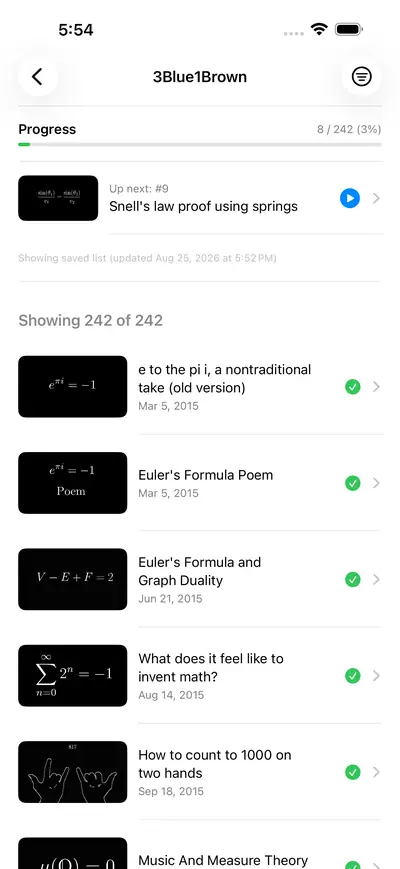
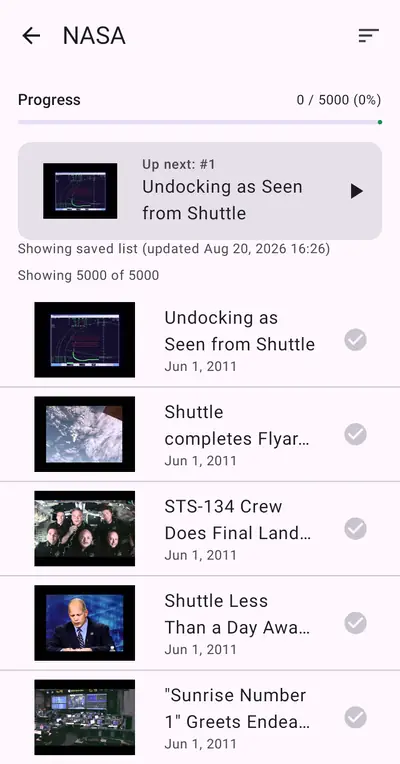
Progress sits at the top of the list. This is the heart of keeping your place.
-
Progress and “up next”
The top row shows “Progress” with the watched count, the total, and a percentage. The row below it is the next video: “Continue: #N” if you stopped partway through one, otherwise “Up next: #N”. Tap it to start there.
-
Sorting
Use the icon at the top right → “Sort” → “Oldest first” or “Newest first”. Oldest first is the default.
-
Filtering
In the same menu, “Show” lets you pick “All”, “Unwatched only”, or “Watched only”. When filtered, the list shows “N shown / N total”.
-
Getting new uploads
The same menu has “Check for new videos”, which fetches only what is new. If something looks wrong, “Reload everything” fetches the list again from scratch.
-
Marking watched or skipped
Each row lets you switch between “Watched”, “Mark unwatched”, “Skip”, and “Unskip”. Skipped videos are passed over during autoplay, but you can still open them with the manual “Next” button.
4. Playing videos
Playback uses YouTube’s official embedded player. The controls sit below it.
-
Autoplay (on by default)
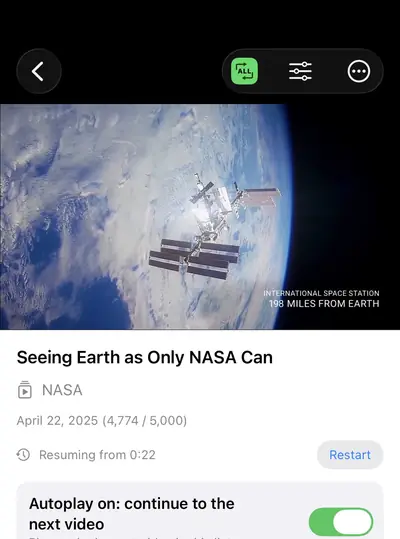
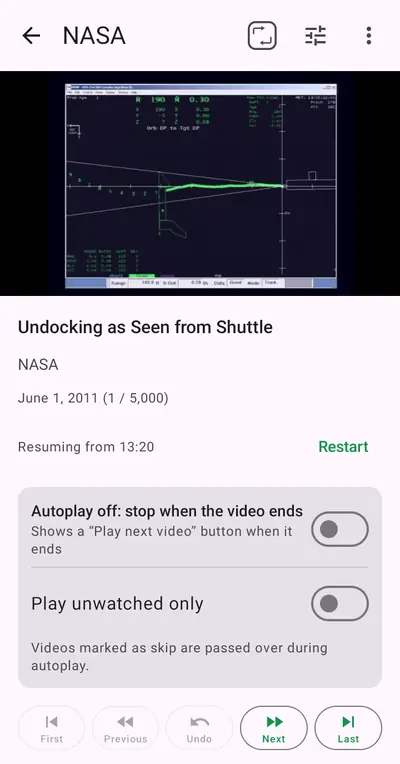
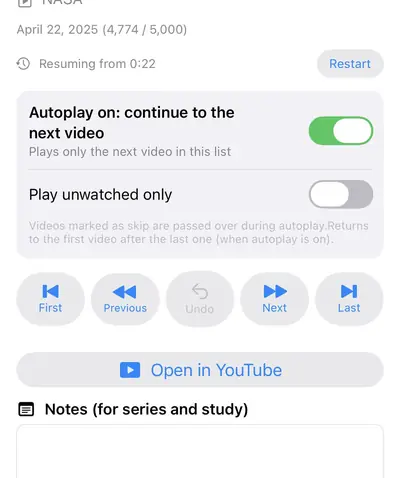
Use the “Autoplay” toggle on the player screen. While it is on, only the next video in the list you have open plays next. It never sends you to related videos or another channel. Switch it off and playback stops at the end, with a “Play next video” button instead. Your choice is saved on the device and kept when the app updates.
-
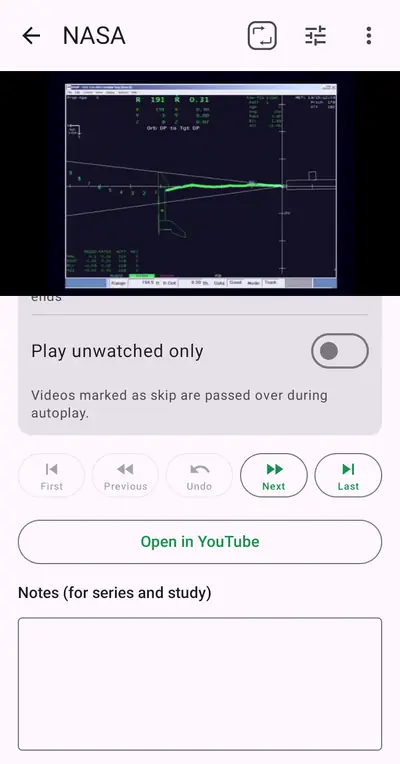
Play unwatched only
The toggle below autoplay. Turned on, videos you have already watched are passed over as well, so only unwatched ones play.
-
Repeat
The badge at the top right cycles through “Off → One → All”. “One” repeats the same video regardless of the autoplay setting. “All” returns to the first video after the last one (when autoplay is on).
-
Moving around
Five buttons: “First”, “Previous”, “Undo”, “Next”, “Last”. “Undo” reverses your last jump and returns you to the video and position you were at — useful when you tap the wrong button.
-
Resuming
Reopen a video you stopped partway through and it continues from the exact second, with “Resuming from (0:00)” shown. To start over, tap “Restart” next to it.
5. Notes and playback settings
-
Writing notes
Below the player there is a “Notes (for series and study)” field. It saves automatically as you type. Tap elsewhere or “Done” to finish. Notes are kept per video.
-
Speed and captions
The slider icon at the top right opens the playback settings, where you can change speed and captions. Captions start off by default. The caption list is only prepared once playback begins, so if it is empty, start the video and open the sheet again.
-
About video quality
YouTube adjusts quality automatically to match your connection, and the official player does not let the app choose it. To pick it yourself, start playback, then use the full-screen button at the bottom right of the player → gear → Quality.
-
Comment on YouTube
“Comment on YouTube” opens the video in the YouTube app or website, where you can leave a comment (the embedded player cannot show comments). “Open in YouTube” in the “…” menu opens the same video. Use either one for videos whose owner has blocked playback outside YouTube.
6. Watching full screen
-
Going full screen
Tap the full-screen button at the bottom right of the player. Turn the phone sideways to fill the screen.
-
Staying full screen between videos
From version 1.1, with autoplay on, the next video continues in full screen. To keep it that way the app switches about 0.5 seconds before the current video ends.
-
Going full screen
Tap the full-screen button at the bottom right of the player. The screen turns sideways automatically and fills the display.
-
Staying full screen between videos
With autoplay on, the next video continues in full screen. To keep it that way the app switches about 0.5 seconds before the current video ends.
-
Leaving full screen
Press Back to close full screen only — the player screen stays open.
7. Saved channels and Pro
The app is free and saves one channel. Inside that channel nothing is held back.
-
What the free version does
Oldest- or newest-first sorting, watched tracking, resume, the jump buttons, notes, progress, and playback in the official player — all without limits.
-
When you add a second channel
A confirmation appears. Choosing “Replace” deletes the watched history, progress, and notes of the channel you had saved, and that cannot be undone. To keep both, consider Pro.
-
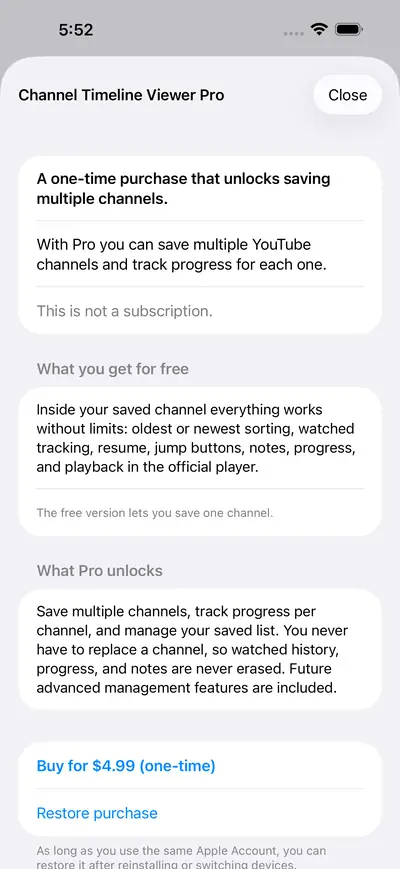
Pro (one-time purchase)
Not a subscription — you buy it once. Save several channels and keep the watched history, progress, and notes of each. The price is whatever the store shows.
-
Restoring a purchase
After reinstalling or switching devices, open the Pro screen and tap “Restore purchase”. As long as you are signed in with the same Apple Account, it comes back. It is a one-time purchase, so you are never charged twice.
-
Restoring a purchase
After reinstalling or switching devices, open the Pro screen and tap “Restore purchase”. As long as you are signed in with the same Google account, it comes back. It is a one-time purchase, so you are never charged twice.
-
Removing a channel
Swipe a row in “Recent channels” to the left to delete it. Deleting also removes that channel’s watched history, progress, and notes.
-
Removing a channel
Use the trash button in “Recent channels”. Removing it also deletes that channel’s watched history, progress, and notes.
8. If something goes wrong
-
The channel URL is not accepted
Use the URL of the channel page (youtube.com/@handle, youtube.com/channel/UC…). A video URL works too.
-
The list stops partway or shows an error
Very large channels take a while on the first load. If the error mentions quota, try again later — the YouTube API has a daily limit.
-
A video will not play
Some videos are blocked from playing outside YouTube by their owner. Use “Open in YouTube” in the “…” menu (or “Comment on YouTube”) for those.
-
Sharing does not open the app
iOS does not allow a share sheet to launch an app directly. Allow notifications and tap the notification that appears right after sharing.
-
Volume differs between videos
That comes from the recording level of the videos themselves and the app cannot even it out. YouTube’s “Stable Volume” is not available in embedded players, so use “Open in YouTube” in the “…” menu for videos where it bothers you.
-
My progress disappeared
Watched history, progress, and notes are stored on your device only. They are erased when you delete the app, or when you delete or replace a channel, and cannot be recovered.
9. What the app deliberately does not do
To respect YouTube’s terms of service, the app never does the following.
-
It does not download or save videos offline
There is no way to store a video on your device.
-
It does not use a player of its own
Playback always happens in YouTube’s official embedded player.
-
It does not block ads or bypass restrictions
Ads are not hidden and playback restrictions are not circumvented.
-
It does not play in the background
Playback stops when you leave the app. While a video plays, the screen simply stays awake.
-
Nothing leaves your device
Watched history, progress, notes, and playback positions are stored on your device only and are never sent to our servers.